Dictation Commands Cheat Sheet: Punctuation, Edits, and Formatting
A complete reference for voice commands in SERP Transcribe — punctuation, capitalization, line breaks, and corrections you can speak instead of type.
SERP Transcribe Team
Product
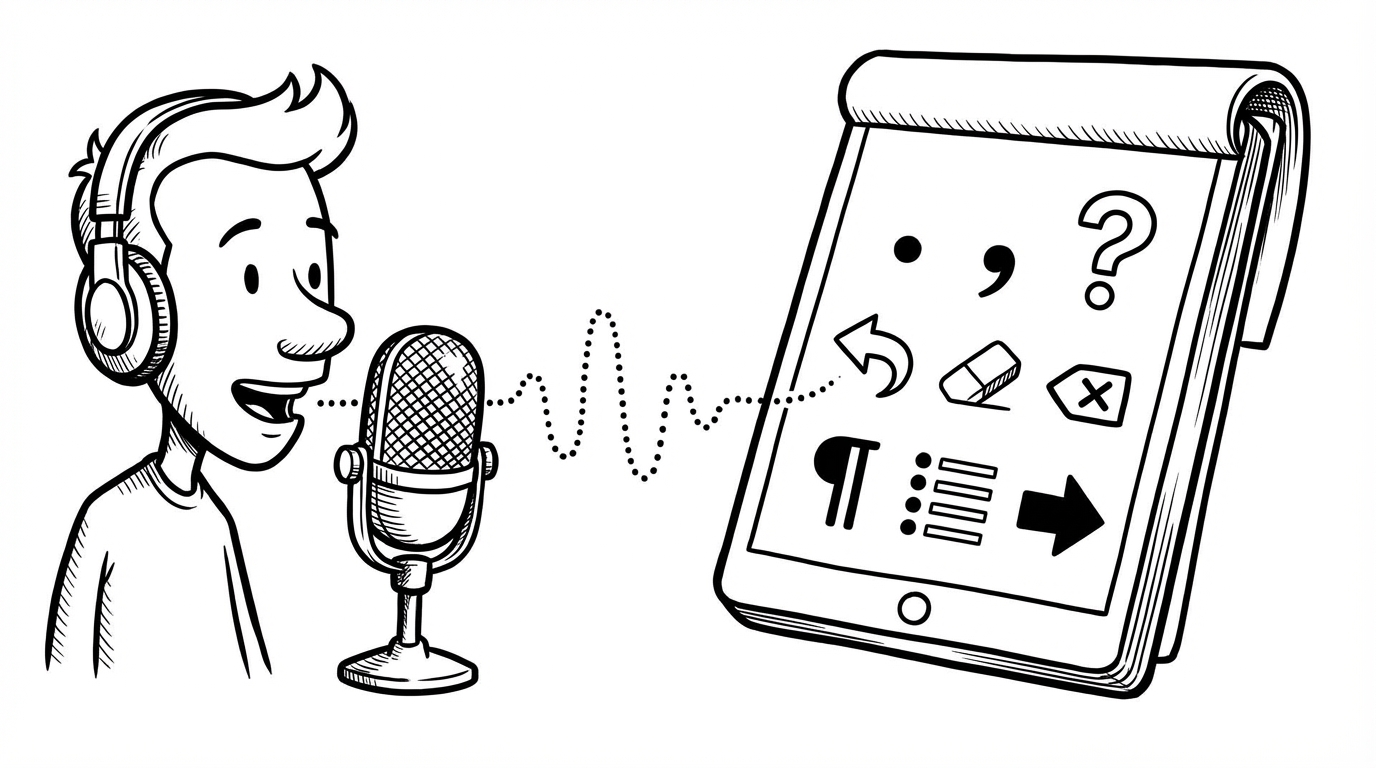
One of the fastest ways to improve your dictation quality is learning which spoken commands produce which output. SERP Transcribe handles a lot of punctuation automatically, but knowing your voice commands means you can steer the output precisely instead of cleaning it up afterward.
Bookmark this page. It's a reference you'll come back to.
How Punctuation Works in SERP Transcribe
SERP Transcribe uses AI-powered transcription that automatically inserts punctuation based on natural speech patterns — pauses, sentence structure, rising and falling intonation. In practice, this means most punctuation appears without you having to say anything.
That said, automatic punctuation isn't perfect, especially for complex sentence structures, lists, or when you want specific formatting. For those cases, spoken commands give you precise control.
Punctuation Commands
Say these words naturally as part of your speech to insert the corresponding punctuation:
| Say This | Gets You |
|---|---|
| "period" or "full stop" | . |
| "comma" | , |
| "question mark" | ? |
| "exclamation point" or "exclamation mark" | ! |
| "colon" | : |
| "semicolon" | ; |
| "open paren" / "close paren" | ( ) |
| "open bracket" / "close bracket" | [ ] |
| "open quote" / "close quote" | " " |
| "dash" or "em dash" | — |
| "hyphen" | - |
| "ellipsis" | … |
| "at sign" | @ |
| "slash" | / |
| "backslash" | \ |
| "percent" | % |
| "ampersand" | & |
| "asterisk" | * |
| "hashtag" or "pound sign" | # |
Line and Paragraph Breaks
| Say This | Gets You |
|---|---|
| "new line" | Line break (like pressing Enter once) |
| "new paragraph" | Paragraph break (like pressing Enter twice) |
| "tab" | Tab character |
Capitalization
| Say This | Gets You |
|---|---|
| "cap [word]" | Capitalizes the next word |
| "all caps [word]" | UPPERCASES the next word |
| "no caps [phrase]" | Speaks the phrase in lowercase |
| "caps on" | Starts capitalizing every word |
| "caps off" | Returns to normal capitalization |
Numbers and Special Characters
| Say This | Gets You |
|---|---|
| "numeral [number]" | Inserts as digit (e.g., "numeral three" → 3) |
| "roman numeral [number]" | Inserts as Roman numeral (e.g., III) |
| "dollar sign" | $ |
| "euro sign" | € |
| "degree sign" | ° |
| "copyright sign" | © |
Practical Tips for Natural Dictation
Pause naturally around punctuation commands. Don't rush from your sentence directly into "comma" — a natural pause helps the AI distinguish spoken punctuation from spoken content.
Use automatic punctuation as your first pass. For most content (emails, messages, notes), the automatic punctuation is accurate enough that you don't need explicit commands. Save voice commands for when you want precise control.
Speak the way you'd want it to read. Your tone of voice — rising at the end of a question, dropping at the end of a statement — helps the AI punctuate correctly without you saying anything. Speak naturally, and the transcription usually follows.
Don't fight the output for filler words. If "um" or "uh" slips into your dictation, just edit it out in the keyboard pass afterward. Trying to speak perfectly without filler words often makes dictation feel stiff and slows you down.
Quick Reference Card
Print or save this for your desk:
SENTENCE ENDINGS      period / question mark / exclamation point
PAUSES                comma / semicolon / colon
STRUCTURE             new line / new paragraph / tab
QUOTES                open quote ... close quote
DASHES                dash (em) / hyphen
CAPS                  cap [word] / all caps [word]
The goal isn't to memorize all of these — it's to know where to look when your output doesn't match what you intended. Over time, the ones you use daily will become second nature.