How to Improve Your Voice Dictation Accuracy (5 Things That Actually Matter)
If your dictation results are inconsistent or full of errors, these five adjustments will have the biggest impact. No new hardware required for most of them.
SERP Transcribe Team
Product
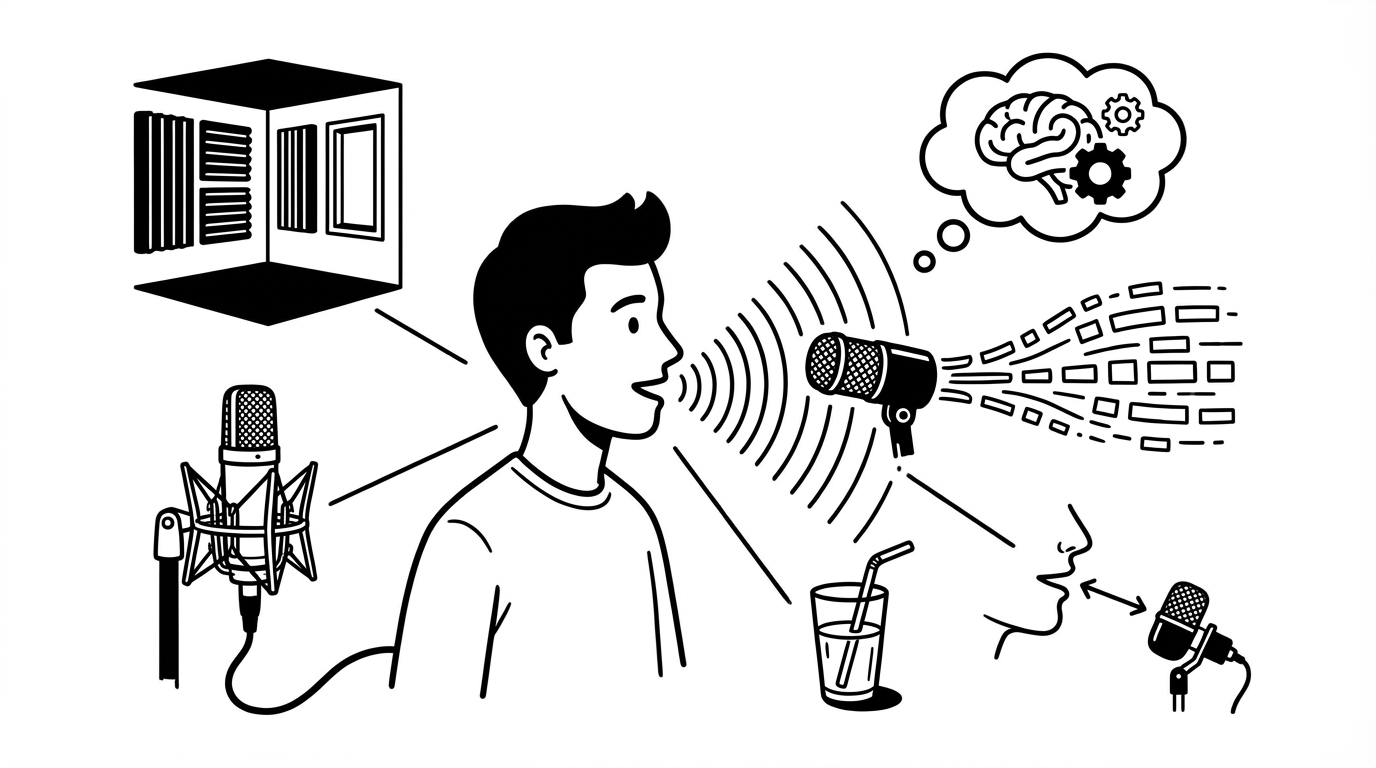
Modern voice dictation tools achieve 95%+ accuracy for most users in good conditions. But "good conditions" is the key phrase — several common factors can drag accuracy down significantly, and most of them are easy to fix.
Here are the five changes that have the biggest impact on dictation accuracy, roughly in order of importance.
1. Get a Better Microphone (This Is the Biggest Single Improvement)
If you're dictating into your laptop's built-in microphone, this is almost certainly your biggest accuracy problem.
Built-in laptop microphones are designed for video calls — they pick up ambient room noise alongside your voice, struggle to separate your speech from background sound, and often produce audio that's perfectly intelligible to a person on a call but genuinely harder for a speech recognition model to parse accurately.
A headset microphone or a USB condenser mic placed close to your mouth fundamentally changes the audio quality. Your voice is captured clearly, close to the source, with dramatically reduced ambient noise. The improvement in dictation accuracy from this single change typically ranges from noticeable to dramatic.
You don't need an expensive setup:
- A basic USB headset ($20–40) is significantly better than a laptop mic for dictation
- A lavalier clip-on mic that runs to your laptop's 3.5mm input works well
- A dedicated USB podcast-style mic (Blue Yeti, Audio-Technica AT2020) is excellent but not necessary
If you dictate regularly and accuracy matters to you, a headset is the highest-ROI investment you can make. Better than any software setting.
2. Reduce Background Noise
Speech recognition models separate your speech from background audio — but the more background audio there is, the harder that separation is, and the more errors result.
Common problem sources:
- Music or TV playing in the background
- Open-plan office ambient noise
- HVAC and fan noise (a PC tower or desk fan can be a surprising accuracy killer)
- Street noise through an open window
- Other people talking nearby
What helps:
- Dictate in a quieter environment when possible
- Close windows if there's street noise
- Position your microphone closer to your mouth (reduces the ratio of your voice to background)
- A headset mic is inherently better at noise isolation than a desktop mic because it's close to your mouth
You can't always control your environment. But if accuracy is poor and you're in a noisy setting, try the same dictation in a quiet room and see if accuracy improves — it usually does significantly.
3. Adjust Your Speaking Pace
The most common speaking-related accuracy error is speaking too fast. When you dictate at natural conversation speed, the model sometimes has to make faster decisions about ambiguous sounds, and errors increase.
The sweet spot for dictation is slightly slower than normal conversation pace — deliberate, but not robotic or overly slow. Think of how you'd speak to someone who's writing down what you're saying by hand. Clear, unhurried, each word complete.
A few specific habits:
- Pause briefly between sentences rather than speaking in one long continuous stream
- Enunciate clearly, especially the endings of words (words that end in consonants often get swallowed)
- Slow down slightly for names, technical terms, and unusual words
You don't need to change your natural voice — just apply a slight deliberateness that you'll stop consciously thinking about within a few days.
4. Speak in Complete Phrases, Not Single Words
Dictation accuracy is significantly better on complete phrases and sentences than on single isolated words. This seems counterintuitive, but speech recognition models use context — the words around a given word — to resolve ambiguity. "They're going to their house over there" has three homophones that a model can only resolve with context.
When you dictate single words or short fragments (especially if you're building up a list item by item), accuracy degrades because the context window is narrow. When you dictate in full natural sentences, the model has enough surrounding context to make better decisions.
Less accurate: [hotkey] "accept" [release] ... [hotkey] "the" [release] ... [hotkey] "offer" [release]
More accurate: [hotkey] "accept the offer" [release]
Dictate in natural chunks — phrases, sentences, paragraphs. Avoid single-word dictation for anything that has a phonetic twin.
5. Do a Quick Edit Pass (Train Your Expectations)
Accuracy expectations that are calibrated properly reduce frustration and improve the actual practice.
At 95% accuracy on 200 words, you'll have ~10 words to fix. At 97%, it's about 6. That edit pass — scanning what you dictated and fixing errors — takes 10–15 seconds for a typical paragraph.
The edit pass is also where you learn what the tool gets wrong consistently. If it regularly mishears a word you use often, you'll notice — and you can start pronouncing that word more distinctly, or rephrase to avoid it.
Don't skip the review step. It's not failure to have a few errors — it's the normal operation of a tool that's 95%+ accurate. The review catches them. The combined time (dictation + review) is still far faster than typing for most users.
Implement these in order:
- Get a headset microphone
- Reduce background noise
- Slow down slightly
- Dictate in phrases, not single words
- Review and fix quickly
Most users who make all five changes see their effective accuracy improve significantly within a week. The tool is only part of the equation — audio quality and speaking habits are equally important.