SERP Transcribe vs Built-In Dictation: macOS and Windows Compared
A honest, side-by-side comparison of SERP Transcribe against macOS Dictation and Windows Voice Access — what each one does well and where each falls short.
SERP Transcribe Team
Product
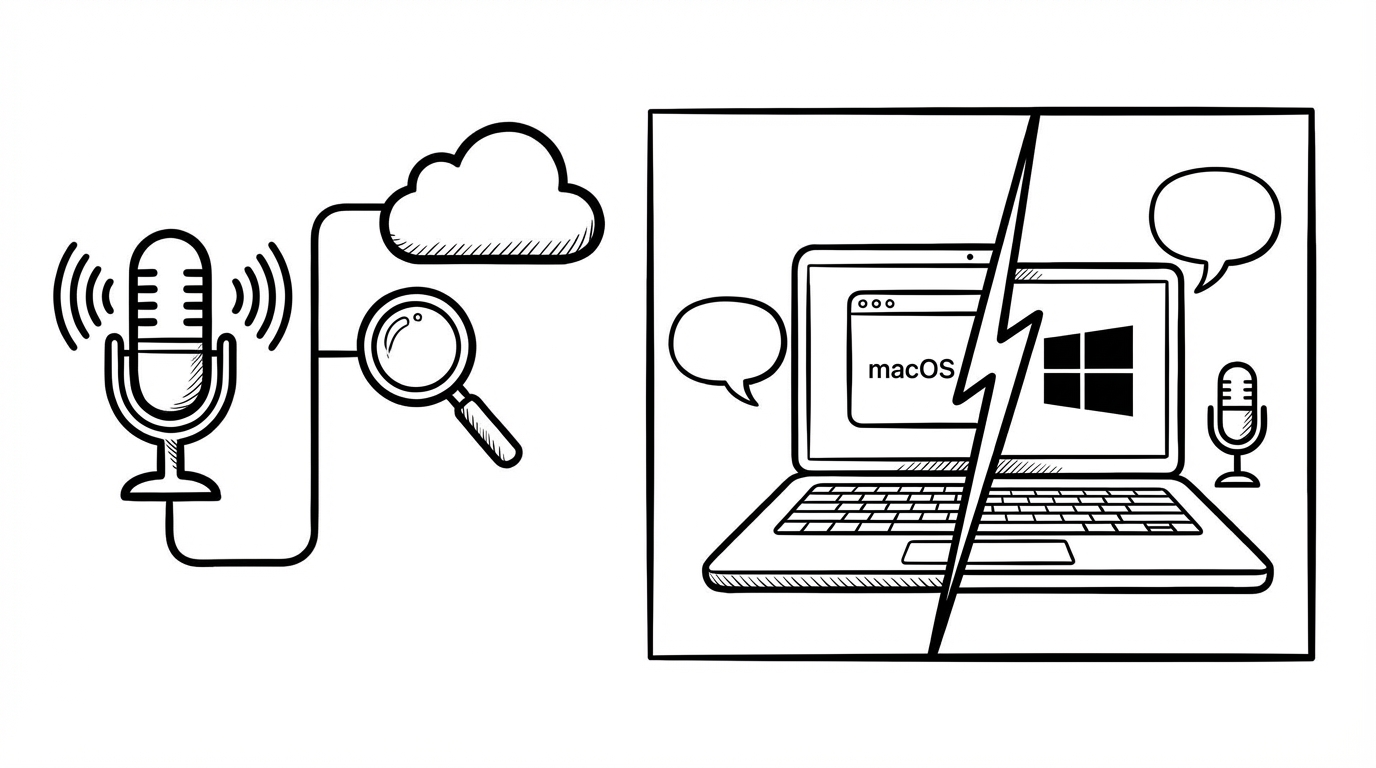
Your Mac and Windows PC both ship with free dictation built in. So why would you use anything else? That's a fair question — and it deserves an honest answer.
This post breaks down exactly what macOS Dictation and Windows Voice Access do well, where they fall short, and where a tool like SERP Transcribe fills in the gaps.
What the Built-In Tools Do Well
Let's be fair: both built-in options have come a long way.
macOS Dictation (activated by pressing the Fn key twice or a custom shortcut) is seamlessly integrated into the operating system. It works in any text field across the entire OS — including apps, browsers, and system dialogs. It supports over 50 languages, handles punctuation via voice commands, and since macOS Ventura, processes most transcription on-device, which is good for privacy. It's fast, free, and already there.
Windows Voice Access (Windows 11 only) goes even further with system-level control. You can navigate the OS, click buttons, and move windows entirely by voice. It's designed as an accessibility tool first and a productivity tool second, and it shows — the dictation is solid for everyday use, and it integrates naturally with Microsoft 365.
If you only occasionally dictate and don't need anything specialized, the built-in options are genuinely fine.
Where They Fall Short
The limitations become obvious once you try to make dictation a real part of your daily workflow.
No push-to-talk hotkey designed for burst writing. macOS Dictation starts when you double-tap Fn and stops on a second tap or after a pause. Windows Voice Access uses voice commands to start and stop. Neither gives you the held-hotkey, release-to-finish UX that makes short-burst dictation feel natural and fast.
Output isn't always paste-ready. Built-in dictation types directly into wherever your cursor is, character by character, in real time. That's great for some workflows but problematic for others. If you want to speak a paragraph, review it, and then paste it cleanly — that's not how native dictation works.
Limited punctuation and structure. Both tools support voice commands for punctuation, but they require deliberate spoken commands ("comma," "new line," etc.) and the output often still needs cleanup before it's sendable.
Accuracy on fast or dense speech is inconsistent. Both tools struggle with longer, complex sentences or rapid speech. Short bursts fare better, but neither is tuned for the way people actually talk when composing professional text.
No cross-app clipboard workflow. Because built-in dictation types directly into the active field, there's no way to compose in a buffer, review, and paste. What you speak goes in immediately. If you're in the middle of a chat window and you ramble a bit, it's already sent (or it's already there in a way that's annoying to clean up).
What SERP Transcribe Does Differently
SERP Transcribe is built around a specific workflow: hold hotkey → speak in a burst → release → paste clean text into your active app.
That distinction matters more than it might seem.
Because the transcription happens in a buffer before you paste, you get a moment to see what came out. The output is formatted — proper punctuation, readable structure — not a stream of raw words. And because it pastes rather than types character-by-character, it's fast and reliable across any app that accepts paste input.
The push-to-talk model also changes how you think about dictation. Instead of a long dictation "session" you have to manage, you're doing the same thing you'd do with a keyboard shortcut — hold, do the thing, release. It maps naturally to the way keyboard-centric people already think about their tools.
Side-by-Side Comparison
| Feature | macOS Dictation | Windows Voice Access | SERP Transcribe |
|---|---|---|---|
| Cost | Free | Free (Win 11) | Free tier + paid |
| Platform | macOS | Windows 11 | macOS + Windows |
| Activation | Double-tap Fn | Voice command | Hold hotkey |
| Output method | Types in-place | Types in-place | Paste-ready buffer |
| Punctuation | Voice commands | Voice commands | Automatic + commands |
| System control | No | Yes | No |
| Burst writing UX | Moderate | Moderate | Designed for it |
| Offline support | Yes (newer macOS) | Yes | — |
| Language support | 50+ | 40+ | Multiple |
Who Should Use What
Use macOS Dictation or Windows Voice Access if: You occasionally dictate, you need system-level voice control (Windows), you're happy with in-place typing, or you want zero setup and zero cost.
Use SERP Transcribe if: You write heavily throughout the day, you want a push-to-talk burst workflow, you need paste-ready output you can review before it lands, or you want consistent behavior across every app without worrying about which one has good native dictation support.
Many power users end up using both: the built-in tools for quick one-off dictation within a document, and SERP Transcribe for their real high-volume daily writing workflow.
The built-in tools are good. SERP Transcribe is built specifically for the way fast, keyboard-first writers want to work.