Using SERP Transcribe in Gmail, Google Docs, Slack, and Notion
How to use SERP Transcribe's push-to-talk dictation inside the apps you live in every day — Gmail, Google Docs, Slack, and Notion.
SERP Transcribe Team
Product
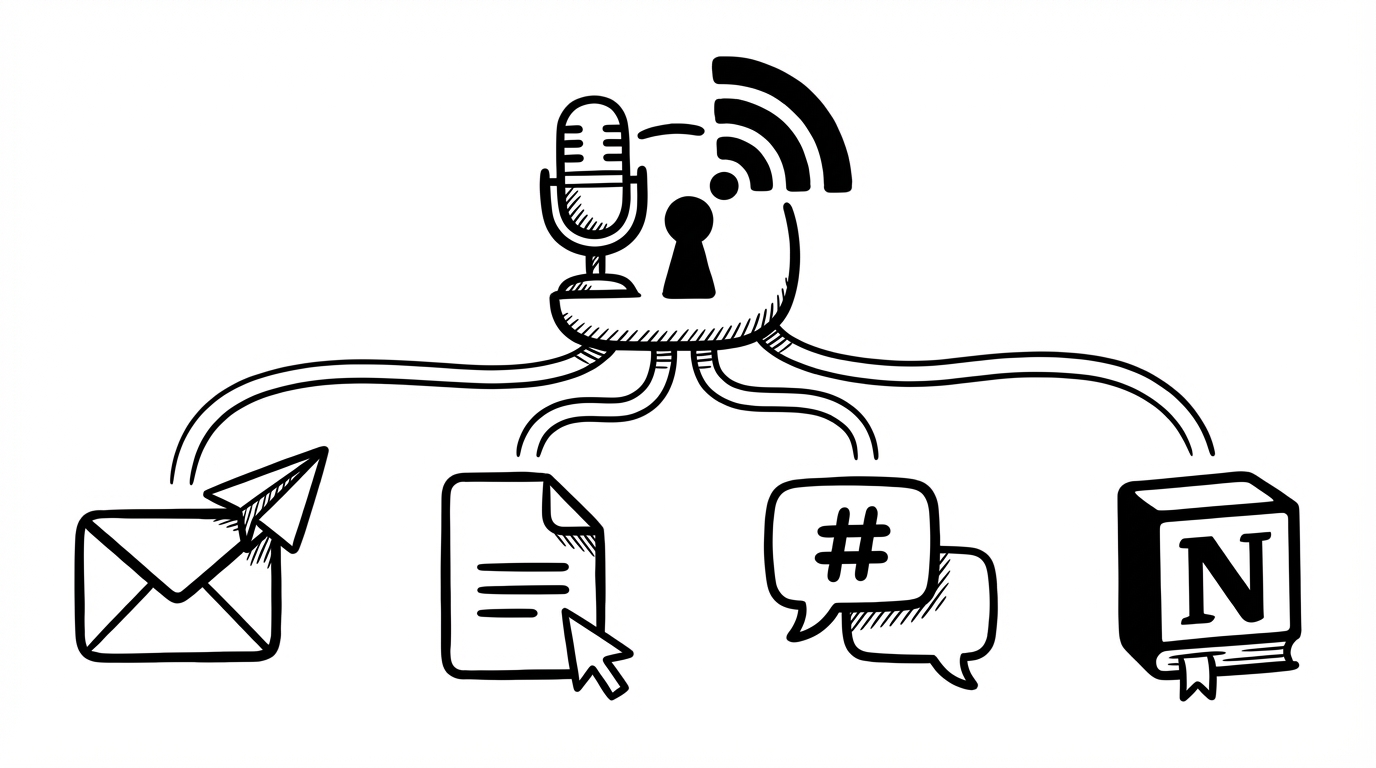
SERP Transcribe doesn't need integrations. It works anywhere you can paste text — which means it works in every app you already use. No plugins, no setup, no connecting accounts.
But different apps have different rhythms, and using dictation well in each one is a slightly different skill. Here's how to get the most out of SERP Transcribe in four apps most people spend the majority of their day in.
Gmail
Email is where most people feel the dictation gain most immediately. The cognitive load of "I know what I want to say but typing it perfectly is friction" is highest in email, and the payoff is immediate.
The workflow:
- Open a reply or compose window in Gmail
- Click into the message body to place your cursor
- Hold your SERP Transcribe hotkey, dictate your reply, release
- Do a quick scan, edit any errors, send
For short replies — "sounds good, see you at 3" — don't bother, just type. The dictation win is for anything over two or three sentences. Once you'd normally be spending 30+ seconds composing, speaking is faster.
Tips for Gmail specifically:
- Dictate the body first, then add the subject line by typing (subject lines are short enough to type)
- For longer emails, use multiple bursts: one for the opening context, one for the ask, one for the closing
- Gmail's compose window accepts paste perfectly — no quirks
Google Docs
Docs is where SERP Transcribe shines for longer-form content. Google Docs does have its own built-in Voice Typing (Tools → Voice Typing), but it types in real-time character by character. SERP Transcribe's paste-based model means you can speak a full paragraph and see the whole thing land cleanly rather than watching it trickle in.
The workflow for drafting:
- Open your Doc and click where you want content
- Hold hotkey, speak a paragraph or section, release
- Review the pasted text, do a quick edit if needed
- Continue to the next burst
The workflow for writing notes or outlines:
- Dictate your headings first as a skeleton
- Go back and fill each section with a burst
Tips for Google Docs specifically:
- Use "new paragraph" in your speech to create clean paragraph breaks
- For bullet lists, type the dash or bullet yourself, then dictate the list item — it pastes cleanly on the same line
- Docs renders formatted paste output well; punctuation and capitalization from SERP Transcribe lands correctly
Slack
Slack is high-frequency, low-formality. Most Slack messages are short — two sentences, a quick answer, a thread reply. SERP Transcribe is slightly less useful for one-liners here, but for anything substantive, it's a genuine time saver.
The workflow:
- Click into the message field in the channel or DM
- Hold hotkey, dictate your message, release
- Review, press Enter to send
Where dictation really wins in Slack:
- Longer replies in threads where you're explaining something
- Status updates or standup messages in async channels
- Writing out a quick brief or scope in a planning channel
- Drafting messages to multiple people (dictate to one, copy, send to others)
Tips for Slack specifically:
- Slack has its own keyboard shortcuts — make sure your SERP Transcribe hotkey doesn't conflict with common Slack shortcuts (Ctrl+K for quick jump, Ctrl+/ for shortcuts, etc.)
- If you're dictating a message with a code snippet or formatted content, type that part — paste-based dictation will land in the message body cleanly but you'll still need to manually add code blocks
Notion
Notion is where the paste-based workflow really demonstrates its value. Because Notion's editor has a somewhat opinionated structure (blocks, commands, etc.), real-time character-by-character dictation often misbehaves. SERP Transcribe's paste approach sidesteps that entirely.
The workflow for Notion pages:
- Click into a text block where you want content
- Hold hotkey, dictate, release — the text pastes cleanly into the block
- For a new block, press Enter to create it, then dictate into it
Great Notion use cases for dictation:
- Daily notes pages (dictate your morning brain dump into a Notion page)
- Meeting notes (capture as the meeting happens or right after)
- Project briefs and spec docs (speak the first draft, refine with keyboard)
- Personal knowledge base entries (dictate the gist of what you learned)
Tips for Notion specifically:
- Dictate into a plain text block; avoid trying to dictate directly into headings, callouts, or other structured blocks
- For toggle blocks or databases, type the structure first, then dictate the content inside
- Notion's
/commands still need to be typed — dictation is for text content, not commands
The Common Thread
Across all four apps, the pattern is the same: cursor → hold → speak → release → review → go. SERP Transcribe doesn't care what app you're in. The hotkey is the same, the output quality is the same, the workflow is the same.
That consistency is one of the biggest practical advantages of a paste-based approach over app-specific integrations. You build one habit and it transfers everywhere.