Voice Coding: How to Dictate Code Comments and Docstrings
A practical guide for developers who want to use voice dictation to write better code documentation faster — comments, docstrings, README sections, and inline notes.
SERP Transcribe Team
Product
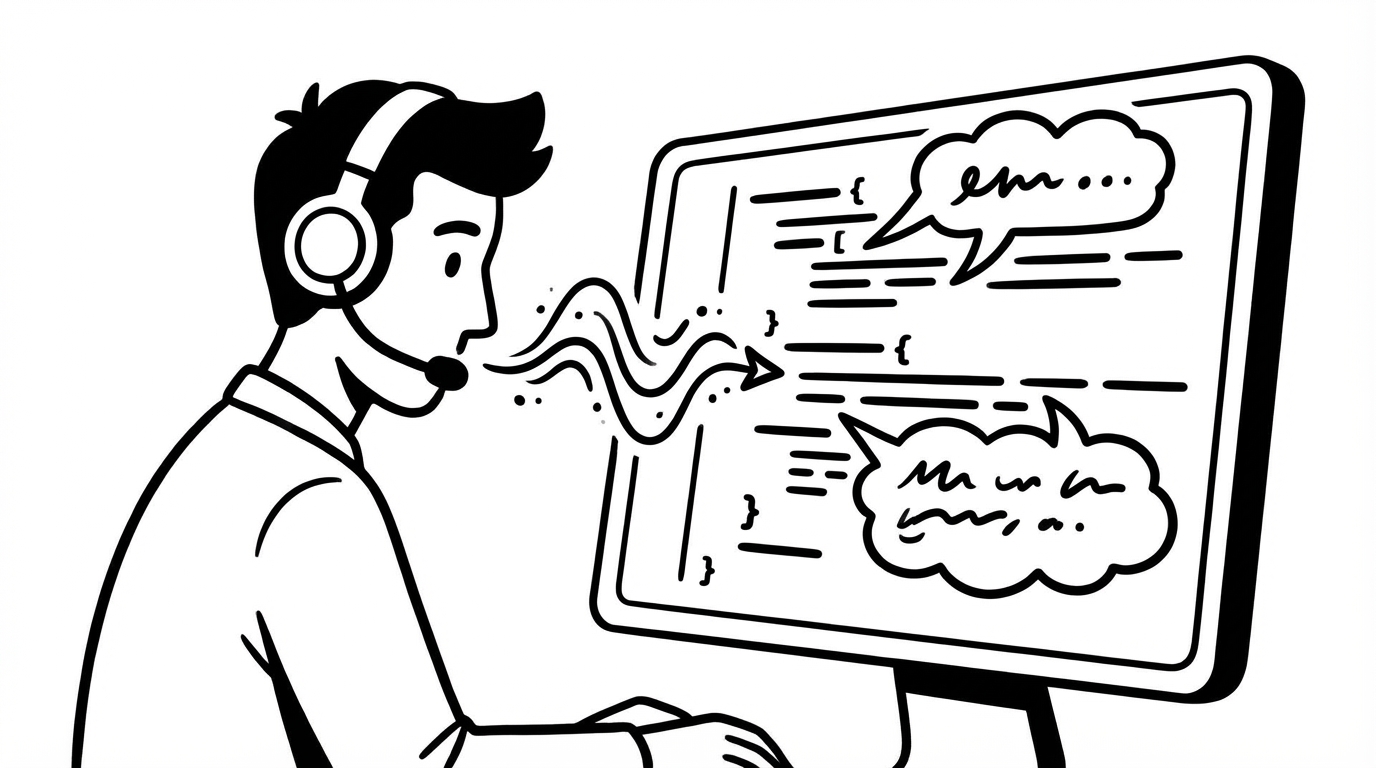
Most developers write great code and mediocre documentation. Not because they don't care — because switching from thinking in code to writing in prose breaks the flow. You've just solved the hard part. Now you have to explain it in English, and typing that explanation feels like admin.
Voice dictation changes that calculus. Speaking is closer to how you'd explain code to a colleague than typing is. This guide covers how to use SERP Transcribe specifically for code documentation — comments, docstrings, README sections, and inline notes.
Why Dictation Works for Documentation
When you explain code to someone verbally, you naturally produce good documentation. You say what the function does, what parameters it expects, what edge cases matter, what it returns. That's exactly what a docstring or comment block should contain.
The friction with typed documentation is that the medium feels formal. You stare at a blank docstring and try to write a document instead of just explaining what you just built. Speaking sidesteps that formality. You explain it out loud, the transcription captures it, and you have a first draft that's usually 80% of the way there.
Workflow: Docstrings
Here's the pattern for Python docstrings, but the approach transfers to any language:
- Write the function signature
- Hold your SERP Transcribe hotkey
- Speak the explanation: "This function takes a user ID and returns their subscription tier. It queries the database and falls back to the free tier if no record is found. Raises a ValueError if the user ID is negative."
- Release, paste below the function signature
- Do a quick keyboard pass to add proper docstring syntax
The spoken output becomes the substance of your docstring. You just add the formatting wrapper.
Before dictation (what you'd stare at):
def get_user_tier(user_id: int) -> str:
    # TODO: add docstring
After speaking the explanation and cleaning up:
def get_user_tier(user_id: int) -> str:
    """
    Returns the subscription tier for a given user.

    Queries the database for the user's subscription record and returns
    their current tier as a string. Falls back to 'free' if no record
    is found. Raises ValueError if user_id is negative.

    Args:
        user_id (int): The unique identifier for the user.

    Returns:
        str: The subscription tier ('free', 'pro', or 'enterprise').

    Raises:
        ValueError: If user_id is negative.
    """
That docstring came from a 15-second dictation and a 30-second edit pass. Most developers spend that long just deciding how to start.
Workflow: Inline Comments
For inline comments, the pattern is even simpler. Dictate the comment before you write the code block it describes.
Hold the hotkey, speak: "This loop iterates through the paginated results and accumulates them into a flat list. We use a while loop instead of a for loop because the page count isn't known upfront."
Paste, strip the verbosity down to the essentials, move on. What you dictated is more than you need — that's fine. Editing down is faster than building up.
Workflow: README Sections
README files are some of the worst-documented files in most codebases precisely because they require the most prose. Nobody wants to write several paragraphs explaining their project after spending two weeks building it.
Speak it conversationally instead. Imagine you're explaining the project to a new team member:
"So this is a CLI tool that watches a directory and automatically processes incoming JSON files. It validates the schema, transforms the data according to a config file, and pushes the results to a specified API endpoint. The main use case is syncing data between internal systems without writing custom scripts every time."
That's your README introduction. Clean it up slightly, add code examples by typing, and you have a section that would have taken 20 minutes to type from scratch.
What to Type vs. What to Dictate
In a development context, the split is clear:
Dictate: Any natural language content — comments, docstrings, README prose, commit messages, PR descriptions, issue descriptions, inline explanatory notes.
Type: Code itself, variable names, syntax, file paths, URLs, anything where precision is character-level.
The boundary is exactly the prose/code boundary. Whenever you switch from writing code to writing English, that's the moment to reach for the hotkey.
Specific Scenarios Worth Knowing
Multi-line comment blocks: Speak naturally, paste, then add the comment syntax wrapper (/* */, #, //, """, etc.) around the block. Faster than typing the comment character on every line.
TODO and FIXME notes: Quick to type, but if you find yourself writing longer context-setting TODOs ("TODO: this currently assumes the cache is always warm — needs a fallback for cold start scenarios"), dictating the explanation is faster.
Commit messages: The subject line is worth typing. The body — where you explain why you made the change — is a perfect dictation target. One burst, paste, done.
PR descriptions: Often skipped because they're time-consuming to write. With dictation, you speak the summary of what you changed, why, and how to test it. A PR description that would take 5 minutes to type takes 1 minute to speak and clean up.
Reducing Documentation Debt
The developer who dictates documentation writes more documentation. Not because they suddenly care more — because the friction is low enough that they do it in the moment instead of adding it to a mental backlog.
Documentation debt accumulates because the cost of writing it always seems higher than the value in the moment. Cutting that cost by 60–70% tips that calculus in the right direction. The codebase ends up better documented as a byproduct of a faster individual workflow.
Start with docstrings on your next function. See how fast the burst-and-paste approach is. It gets quicker every time.