Voice Typing for Older Adults: Write Emails and Messages Without the Frustration
If typing has become slow, painful, or just annoying, voice dictation is one of the most practical tools available. Here's a simple guide for getting started.
SERP Transcribe Team
Product
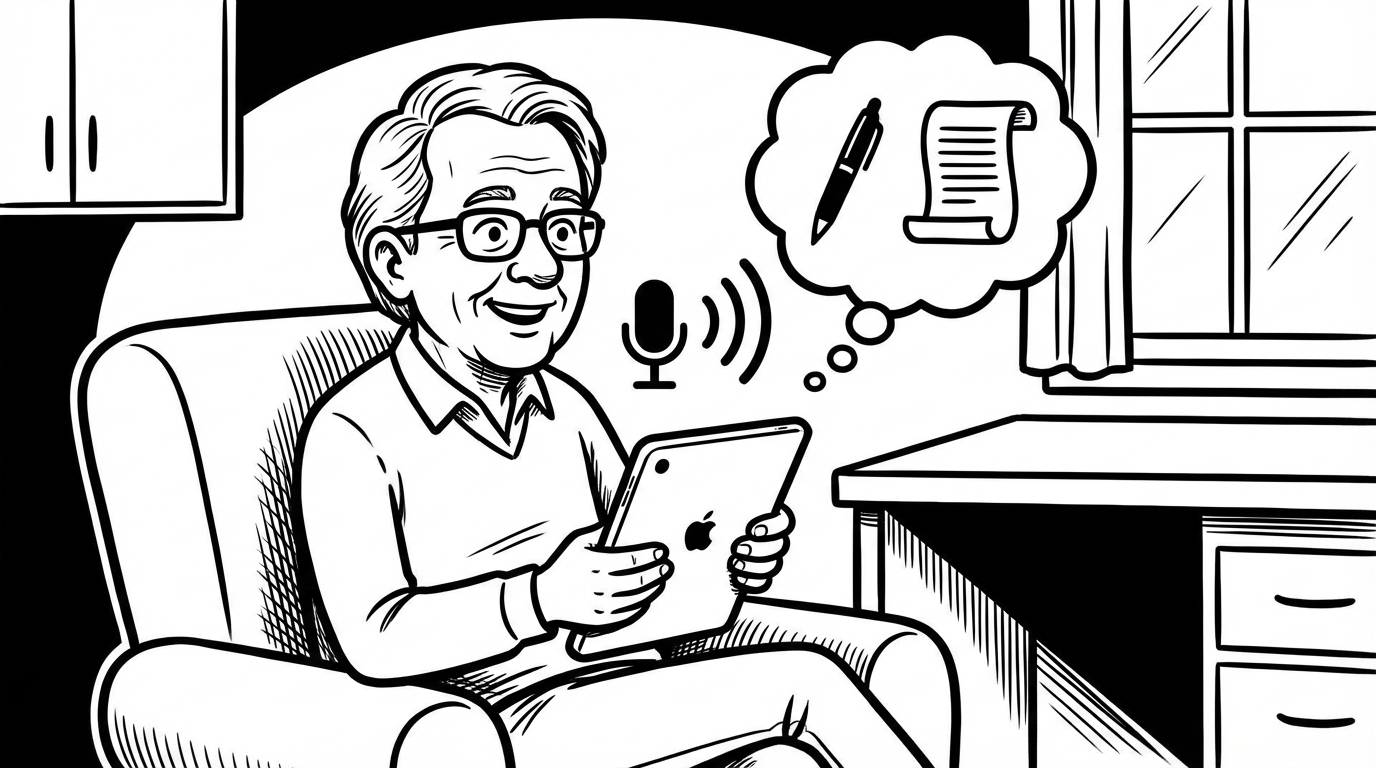
Typing has never been the most natural thing in the world. For many older adults, it's gotten less comfortable over time — arthritis, slower fine motor precision, or simply finding the keyboard increasingly frustrating compared to just saying what you mean.
Voice dictation has been around for years, but it's only recently become accurate enough and simple enough to genuinely replace typing for everyday tasks. If you've tried it before and given up, the technology has improved dramatically. If you've never tried it, this guide will show you what's actually possible.
What Voice Dictation Does
In simple terms: you speak, and what you say appears as text on the screen. You can then send it, save it, or edit it the same way you would anything typed.
With SERP Transcribe, you hold a keyboard shortcut (one button combination you set yourself), speak naturally, and when you release, your words appear ready to paste into whatever you're working on — an email, a message, a letter, a document.
You don't have to speak in a special way. You don't have to use commands or sound robotic. Just talk normally, the way you'd speak to another person.
What You Can Use It For
Emails to family and friends. Instead of typing out a long email to your children or grandchildren, you speak it. The words appear, you check them, and you send. A letter that would take 20 minutes to type takes 3 minutes to speak.
Reply to messages. Whether it's email, text on your phone, or messages from family on WhatsApp, voice lets you reply properly without struggling with small buttons or keyboards.
Writing letters and notes. Thank-you notes, birthday messages, a letter to a friend — all of these can be dictated and then printed or sent.
Making lists. Grocery lists, things to remember, notes to yourself — speak them into a notes app and they're there when you need them.
Filling out forms online. Many online forms have text fields where you need to type information. Voice dictation works in those fields too, so you can speak your answers instead of typing them.
How Accurate Is It?
Modern voice dictation is remarkably accurate — typically getting 95% or more of words right when you speak clearly. That's one error every 20 words, which sounds like a lot but in practice means a quick read-through catches anything that needs fixing.
The things that help accuracy:
- Speak at a normal, unhurried pace (not slowly, not quickly — just normally)
- Enunciate clearly
- Use a decent microphone — the built-in laptop mic is usually fine, but a simple headset is better
- Speak in quiet conditions rather than a noisy room
You don't need to be perfect. A word or two that comes out wrong is easy to fix, and most messages are understood just fine even with a small error.
Getting Comfortable With It
The first few times you use voice dictation, it feels a little strange to speak to your computer. That passes quickly. Most people are comfortable within a week of daily use, and within two weeks it starts to feel completely natural.
A few things that help beginners:
Start with low-stakes messages. Use voice to reply to a family group chat or write a quick note to yourself before you use it for something important. Build confidence on easy things first.
Don't worry about speaking perfectly. You'll correct mistakes in the editing pass anyway. Speaking naturally and fixing a word or two afterward is faster than trying to speak perfectly and stopping yourself every time you stumble.
Read it back before sending. Give what you've dictated a quick read before it goes anywhere. This catches any errors and usually takes 10–15 seconds for a typical message.
For Family Members Helping an Older Relative
If you're setting this up for a parent or grandparent, the most important thing is keeping it simple. Set a comfortable hotkey — a single key if possible, or a simple two-key combination — and do the first few uses together so they see exactly how it works.
The concept is simple enough that most people understand it immediately. The barrier is usually confidence, not comprehension. A few successful dictations with a family member present, and most older adults are off and running.
A Note on Privacy
SERP Transcribe only records audio when you're actively holding the hotkey. It's not listening otherwise. When you're not using it, it's completely silent. Your conversations, your home, and your private moments are not being captured in the background.
The Bigger Picture
For anyone who has found typing increasingly difficult, voice dictation is genuinely one of the most useful tools available. It keeps you connected — to family, to friends, to the things you want to write — without the frustration of a keyboard.
Technology should make life easier. For everyday writing and communication, voice dictation does exactly that.