What Is Push-to-Talk Dictation? (And Why It's Better Than Always-On)
Push-to-talk and always-on are two fundamentally different approaches to voice dictation. Here's how they differ, why most professionals prefer push-to-talk, and what it means for your privacy.
SERP Transcribe Team
Product
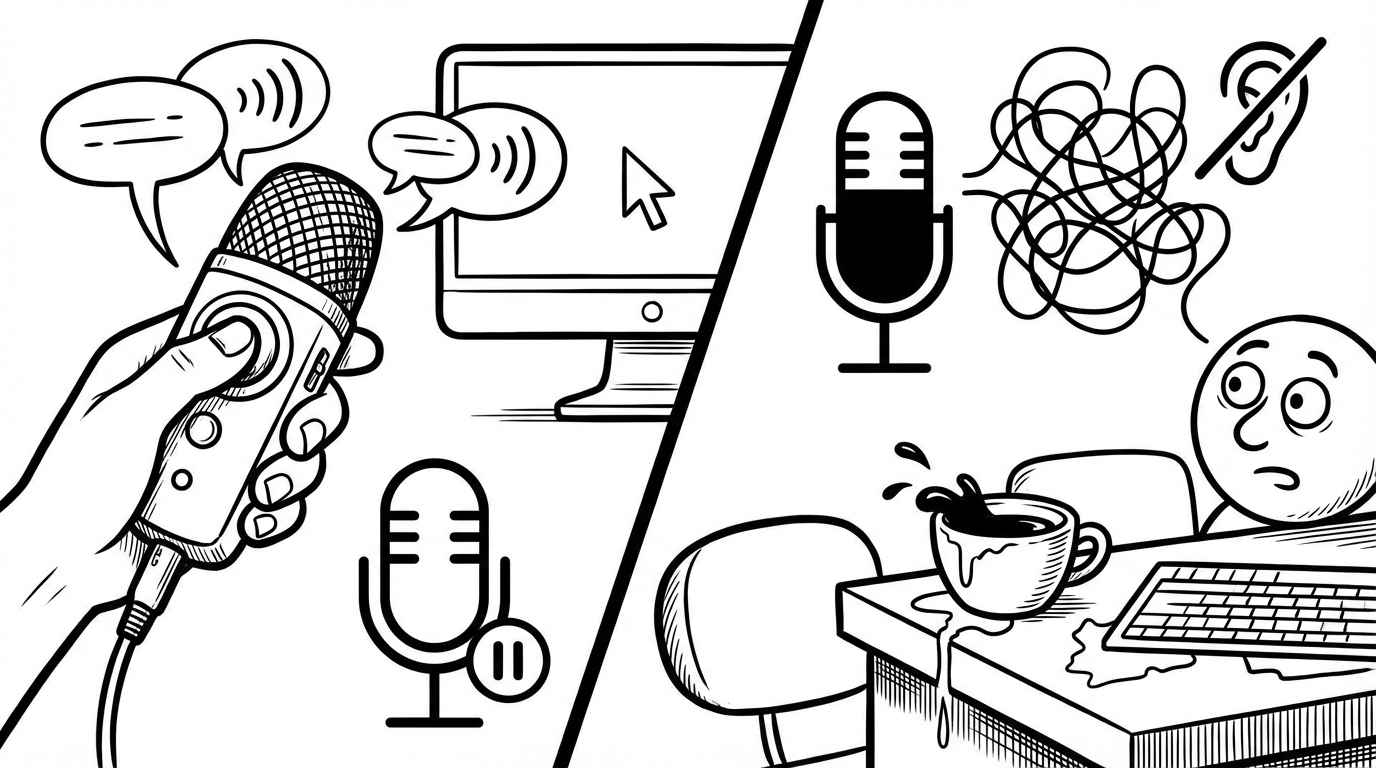
If you're new to voice dictation tools, you'll quickly notice they work in two fundamentally different ways. Understanding the difference helps you choose the right tool and use it effectively.
Always-On Dictation
Always-on tools listen continuously and activate when they detect speech. Voice assistants like Siri, Alexa, and Google Assistant work this way — they listen for a wake word ("Hey Siri"), then process what follows.
Some dictation apps use a variation: you toggle dictation on with a click or hotkey, and then the tool keeps listening until you toggle it off. Windows Voice Typing works this way — press Win + H, and it stays active until you close the toolbar.
The problem with always-on: The tool has to make constant decisions about when you're dictating and when you're not. Talking to someone in the room, coughing, the TV in the background, a phone call — all of this can get picked up. Mode-switching between "typing normally" and "dictation on" requires you to manage the tool's state as part of your workflow.
Push-to-Talk Dictation
Push-to-talk (PTT) works differently: you hold a hotkey while you speak, and release it when you're done. While you're not holding the key, the microphone is silent. Nothing is captured.
This is how SERP Transcribe works, and it's the model most used by professional dictation tools.
How a typical PTT session works:
- You decide you want to dictate something
- You hold your hotkey (say,
Ctrl+Shift+Space) - You speak
- You release the hotkey
- The transcribed text is ready to paste
- You press
Ctrl+Vwherever you want the text to land
The whole thing takes as long as speaking takes, plus about 1–2 seconds of processing.
Why Push-to-Talk Is Better for Most Workflows
You're in control of what gets captured. There's no ambiguity about when you're dictating. You're holding the key = recording. You're not holding the key = nothing captured. No false triggers, no accidentally transcribed side conversations.
It fits naturally into mixed workflows. In a typical workday, you switch between typing, reading, thinking, talking on calls, and dictating. PTT lets you dictate exactly when you want to and do everything else normally. You're not in a "dictation mode" that you have to manage — you're just holding a button for the moments when you want to speak.
It's more private. The microphone is physically silent when you're not holding the hotkey. There's no ambient capture, no processing of background conversations, no risk of non-dictation audio being sent anywhere.
It requires no wake word, no mode switching. Hold, speak, release. That's the entire interface. It becomes as automatic as a keyboard shortcut.
The Learning Curve
The one adjustment for new PTT users is developing the instinct to reach for the hotkey. In the beginning, you'll occasionally find yourself speaking before you've pressed the key, or forgetting to hold it through the end of your sentence.
This is normal. It takes about a week of regular use to build the reflexive hold-to-talk habit. After that, it stops being something you think about.
Tips for the learning curve:
- Choose a comfortable hotkey that you can hold easily for 10–15 seconds (roughly a paragraph)
- Practice holding the key while you speak a complete thought before releasing
- If you release early and lose the end of your sentence, that's normal — just hold the key and continue
Push-to-Talk vs Always-On: Which to Choose
Push-to-talk is better if:
- You mix typing and dictating throughout the day
- Privacy matters to you
- You want precise control over what gets captured
- You'll dictate across multiple apps
Always-on might suit you if:
- You want to dictate for sustained, uninterrupted long sessions without holding a key
- You work in a single application for extended periods
- Physical key-holding is difficult or uncomfortable
For most knowledge workers, push-to-talk is the right default. It's more flexible, more private, and once the habit is built, requires no more conscious effort than any other keyboard shortcut.
How Fast Is It?
Total time from "I want to dictate something" to "the text is ready to paste":
- Hold hotkey: 0 seconds (you're speaking simultaneously)
- Speak at ~110 WPM: depends on length
- Processing after release: 1–2 seconds
- Paste: 0 seconds (Ctrl+V is instant)
For a typical email paragraph (say, 80 words), the complete dictation-to-paste takes about 45–50 seconds. The same paragraph typed at 60 WPM takes about 80 seconds. The advantage scales with length.
Push-to-talk is the approach that makes voice dictation feel like a natural part of your workflow rather than a separate mode you enter and exit. Once the hotkey habit is set, most users forget it's even a choice they made.